PDF Table Extraction: Docling vs Marker vs LlamaParse Compared
Compare three Python tools for PDF table extraction: Docling, Marker, and LlamaParse. Learn which handles merged cells and multi-level headers best.

Introduction
Have you ever copied a table from a PDF into a spreadsheet only to find the formatting completely broken? These issues include cells shifting, values landing in the wrong columns, and merged headers losing their structure.
While doing research, I came across three Python tools for extracting tables from PDFs: Docling, Marker, and LlamaParse. To compare them fairly, I ran each tool on the same difficult table and evaluated the results.
In this article, I’ll walk through what I found on one dense numeric table that exposes how each tool handles tight layouts. For the full comparison across simple, medium, and hard tables, see the long version: PDF Table Extraction: Docling vs Marker vs LlamaParse Compared.
The Test Document
All examples use the same PDF: the Docling Technical Report from arXiv:
source = "https://arxiv.org/pdf/2408.09869"
Some tools require a local file path instead of a URL, so let’s download the PDF first:
import urllib.request

# Download PDF locally (used by Marker later)
local_pdf = "docling_report.pdf"
urllib.request.urlretrieve(source, local_pdf)
Docling: Vision-Language Model Pipeline
Docling is IBM’s open-source document converter built specifically for structured extraction. It ships with two pipelines:
Default pipeline uses two small AI models trained specifically for tables. One spots tables on the page, the other reads the grid inside
VLM pipeline uses one larger AI model that can understand images, similar to how ChatGPT can describe a photo. It reads the whole page and outputs the table structure directly
The default pipeline is fast, but it can struggle with complex layouts like multi-level headers and merged cells. The VLM pipeline trades some speed for better accuracy on tricky tables, which is what we want for this comparison.
We’ll use GraniteDocling, IBM’s vision model built specifically for documents.
The result is a pandas DataFrame for each table, ready for analysis.
For Docling’s full document processing capabilities beyond tables, including chunking and RAG integration, see Transform Any PDF into Searchable AI Data with Docling.
To install Docling, pick the variant that matches your hardware:
Platform                       Install command                     Model spec
Apple Silicon (M1+)            pip install "docling[vlm]" mlx-vlm  GRANITEDOCLING_MLX
Linux / Windows (CUDA or CPU)  pip install "docling[vlm]"          GRANITEDOCLING_TRANSFORMERS
This article uses docling v2.93.0.
Table Extraction
To use the VLM pipeline, we configure DocumentConverter with VlmPipeline and select GraniteDocling as the model:
from docling.datamodel import vlm_model_specs
from docling.datamodel.base_models import InputFormat
from docling.datamodel.pipeline_options import VlmPipelineOptions
from docling.document_converter import DocumentConverter, PdfFormatOption
from docling.pipeline.vlm_pipeline import VlmPipeline

pipeline_options = VlmPipelineOptions(
    vlm_options=vlm_model_specs.GRANITEDOCLING_MLX,           # Apple Silicon
    # vlm_options=vlm_model_specs.GRANITEDOCLING_TRANSFORMERS,  # Linux / Windows
)

converter = DocumentConverter(
    format_options={
        InputFormat.PDF: PdfFormatOption(
            pipeline_cls=VlmPipeline,
            pipeline_options=pipeline_options,
        )
    }
)
Now we can convert the PDF and measure how long it takes:
%%time
result = converter.convert(source)
Wall time: 1min 50s
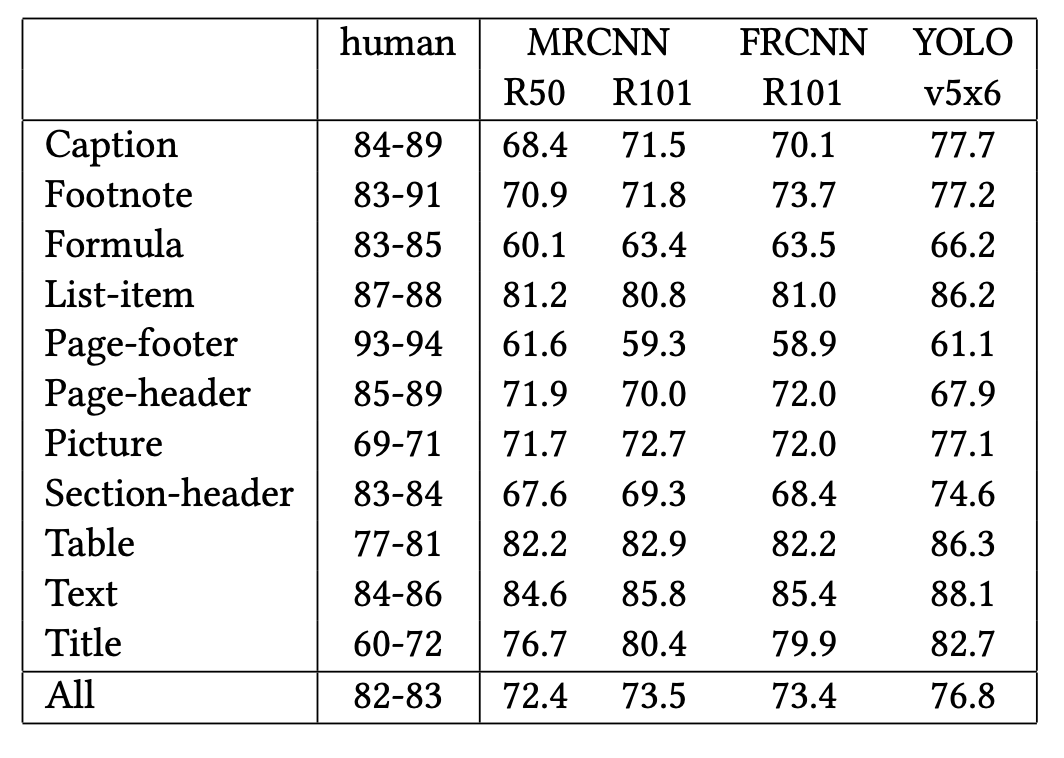
Here’s the original table from the PDF:
And here’s what Docling extracted:
# Export the table as a DataFrame
table = result.document.tables[1]
df = table.export_to_dataframe(doc=result.document)
df
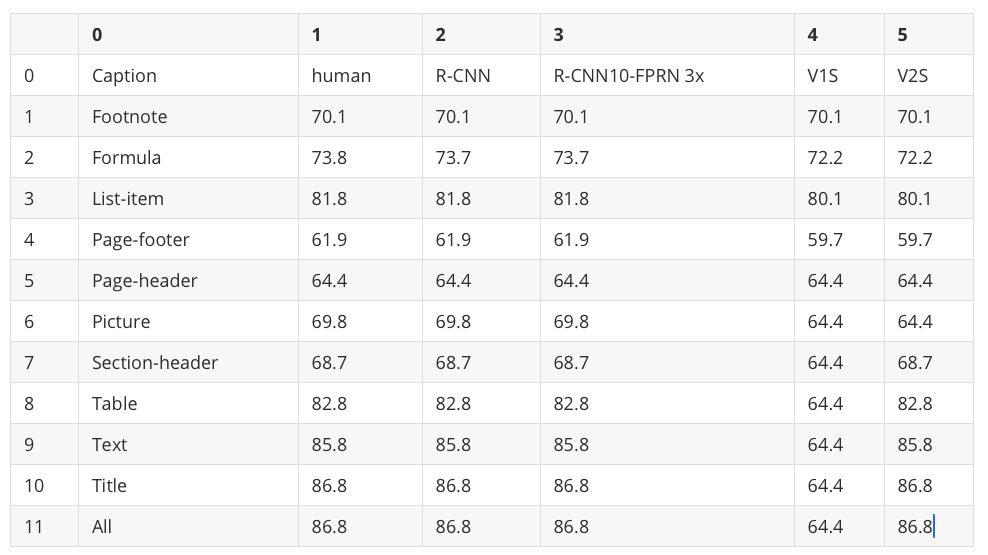
The VLM pipeline struggled badly with this denser table.
Worked:
The 12 row labels (Caption, Footnote, ..., Title, All) match the original
Didn’t work:
Column headers are hallucinated: the original has “MRCNN R50”, “MRCNN R101”, “FRCNN R101”, “YOLO v5x6”, but the VLM output shows “R-CNN”, “R-CNN10-FPRN 3x”, “V1S”, “V2S”
Numeric values don’t match the original. The Footnote row reads “70.1 70.1 70.1 70.1 70.1” instead of “83-91 70.9 71.8 73.7 77.2”
Column 4 shows “64.4” repeating across 7 consecutive rows
This happens because the VLM writes cells one at a time, similar to how ChatGPT writes a response word by word. When the table has many similar-looking numbers, the model can get stuck and keep repeating the same value, which is why “64.4” appears 7 times in a row.
Conclusion: Docling’s VLM pipeline produces unreliable results on dense numeric data, where it can hallucinate column names, repeat values across rows, and lose track of merged cells.
Performance
Docling took about 1 minute 50 seconds for the full 6-page PDF on an Apple M5 Pro (64 GB RAM). Most of that time is spent on the GPU: GraniteDocling reads each page as an image and generates the table structure one token at a time, which pins the GPU at near-full utilization.
Marker: Vision Transformer Pipeline
Marker is an open-source PDF-to-Markdown converter built on the Surya layout engine. Unlike Docling’s two-stage pipeline, Marker runs five stages for table extraction:
Layout detection: a Vision Transformer identifies table regions on each page
OCR error detection: flags misrecognized text
Bounding box detection: locates individual cell boundaries
Table recognition: reconstructs row/column structure from detected cells
Text recognition: extracts text from all detected regions
To install Marker, run:
pip install marker-pdfThis article uses marker v1.10.2.
Table Extraction
Marker provides a dedicated TableConverter that extracts only tables from a document, returning them as Markdown:
from marker.converters.table import TableConverter
from marker.models import create_model_dict
from marker.output import text_from_rendered

models = create_model_dict()
converter = TableConverter(artifact_dict=models)
Convert the PDF and measure how long it takes:
%%time
rendered = converter(local_pdf)
table_md, _, images = text_from_rendered(rendered)
Wall time: 47.1 s
Since TableConverter returns all tables as a single Markdown string, we split them on blank lines:
tables = table_md.strip().split("\n\n")Here’s the original table from the PDF:
And here’s what Marker extracted:
print(tables[1])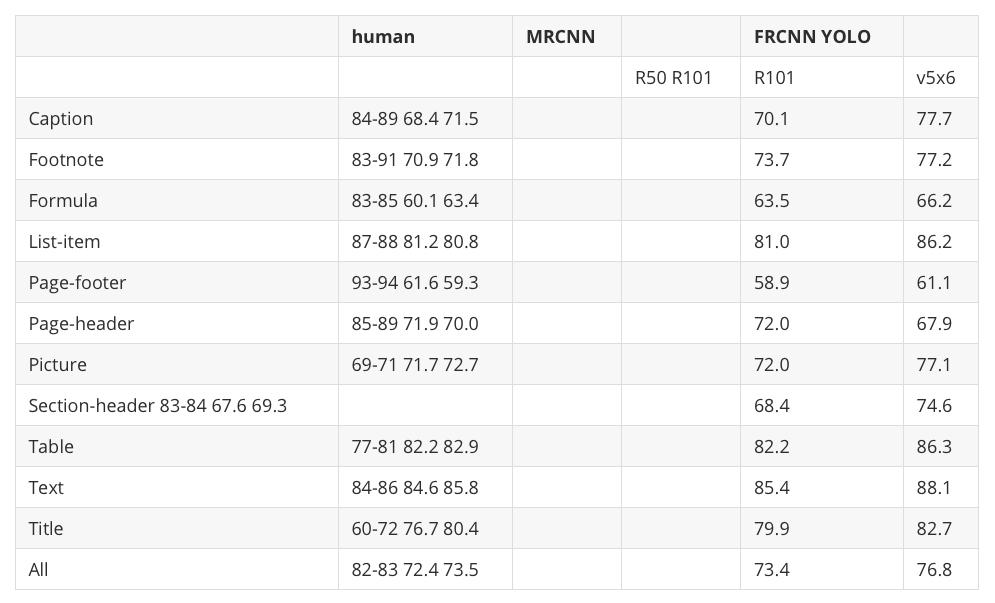
Marker struggled with this denser table.
Worked:
All 12 row labels are preserved (Caption, Footnote, ..., Title, All)
Values for the FRCNN R101 and YOLO v5x6 columns extracted correctly
Didn’t work:
Header parents merged: “human” and “MRCNN” share a column header, “FRCNN” and “YOLO” merged into one cell
The human, MRCNN R50, and MRCNN R101 values are packed into one cell per row (e.g., “84-89 68.4 71.5”), leaving the MRCNN columns empty
The Section-header row label merged with its data (”Section-header 83-84 67.6 69.3”), breaking that row’s alignment
Conclusion: Marker needs visible cell borders. When the same data appears redrawn with borders later in the PDF, Marker extracts it perfectly. See the long version for that result.
Performance
Marker took about 47 seconds for the full 6-page PDF on an Apple M5 Pro (64 GB RAM), more than twice as fast as Docling’s VLM pipeline. The speed difference comes down to architecture:
Docling runs a single large vision-language model that reads each page as an image and generates the table structure one token at a time. Large models take time per token, so the total runtime adds up.
Marker runs a 5-stage pipeline of smaller specialized models that mostly do classification or detection, avoiding the slow token-by-token generation that VLMs need.
LlamaParse: LLM-Guided Extraction
LlamaParse is a cloud-hosted document parser by LlamaIndex that takes a different approach:
Cloud-based: the PDF is uploaded to LlamaCloud instead of being processed locally
LLM-guided: an LLM interprets each page and identifies tables, returning structured row data
For extracting structured data from images like receipts using the same LlamaIndex ecosystem, see Turn Receipt Images into Spreadsheets with LlamaIndex.
To install LlamaParse, run:
pip install llama-parseThis article uses llama-parse v0.6.54.
LlamaParse requires an API key from LlamaIndex Cloud. The free tier includes 10,000 credits per month (basic parsing costs 1 credit per page; advanced modes like parse_page_with_agent cost more).
Create a .env file with your API key:
LLAMA_CLOUD_API_KEY=llx-...from dotenv import load_dotenv
load_dotenv()Table Extraction
To extract tables, we create a LlamaParse instance with two key settings:
parse_page_with_agent: tells LlamaCloud to use an LLM agent that reads each page and returns structured items (tables, text, figures)output_tables_as_HTML=True: returns tables as HTML instead of Markdown, which better preserves multi-level headers
from llama_cloud_services import LlamaParse

parser = LlamaParse(
    parse_mode="parse_page_with_agent",
    output_tables_as_HTML=True,
)
Now let’s convert the PDF and measure how long it takes:
%%time
result = parser.parse(local_pdf)
Wall time: 8.54 s
We can then iterate through each page’s items and collect only the tables:
all_tables = []
for page in result.pages:
    for item in page.items:
        if item.type == "table":
            all_tables.append(item)
Not every item LlamaParse tagged as a table is actually a table. We filter out the title page and a figure that were misclassified, then pick our target table:
incorrect_table_indices = (1, 3)
tables = [t for i, t in enumerate(all_tables) if i not in incorrect_table_indices]
Here’s the original table from the PDF:
And here’s what LlamaParse extracted:
print(tables[1].md)
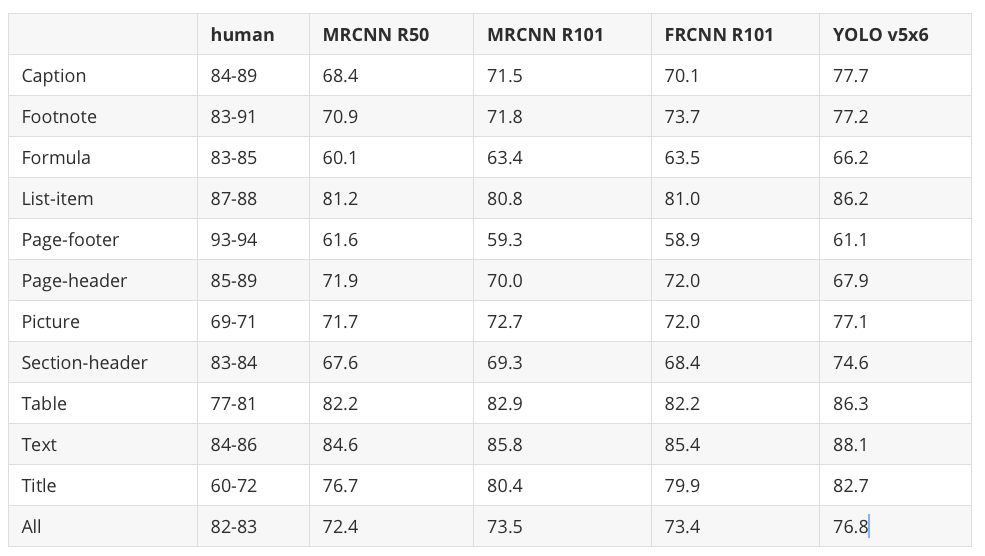
LlamaParse handled this table perfectly:
All 12 row labels match the original (Caption, Footnote, ..., All)
All 5 columns are correctly named: human, MRCNN R50, MRCNN R101, FRCNN R101, YOLO v5x6
All numeric values match the source, including the “human” inter-annotator range column (84-89, 83-91, etc.)
Conclusion: LlamaParse produces the most accurate extraction of the three tools on this dense layout.
Performance
LlamaParse finished in 8.54 seconds, the fastest of the three tools (Docling took 1 min 50s, Marker took 47s).
Unlike Docling and Marker, LlamaParse runs no models on your machine. It uploads the PDF to LlamaCloud, an LLM agent reads each page, and the result comes back:
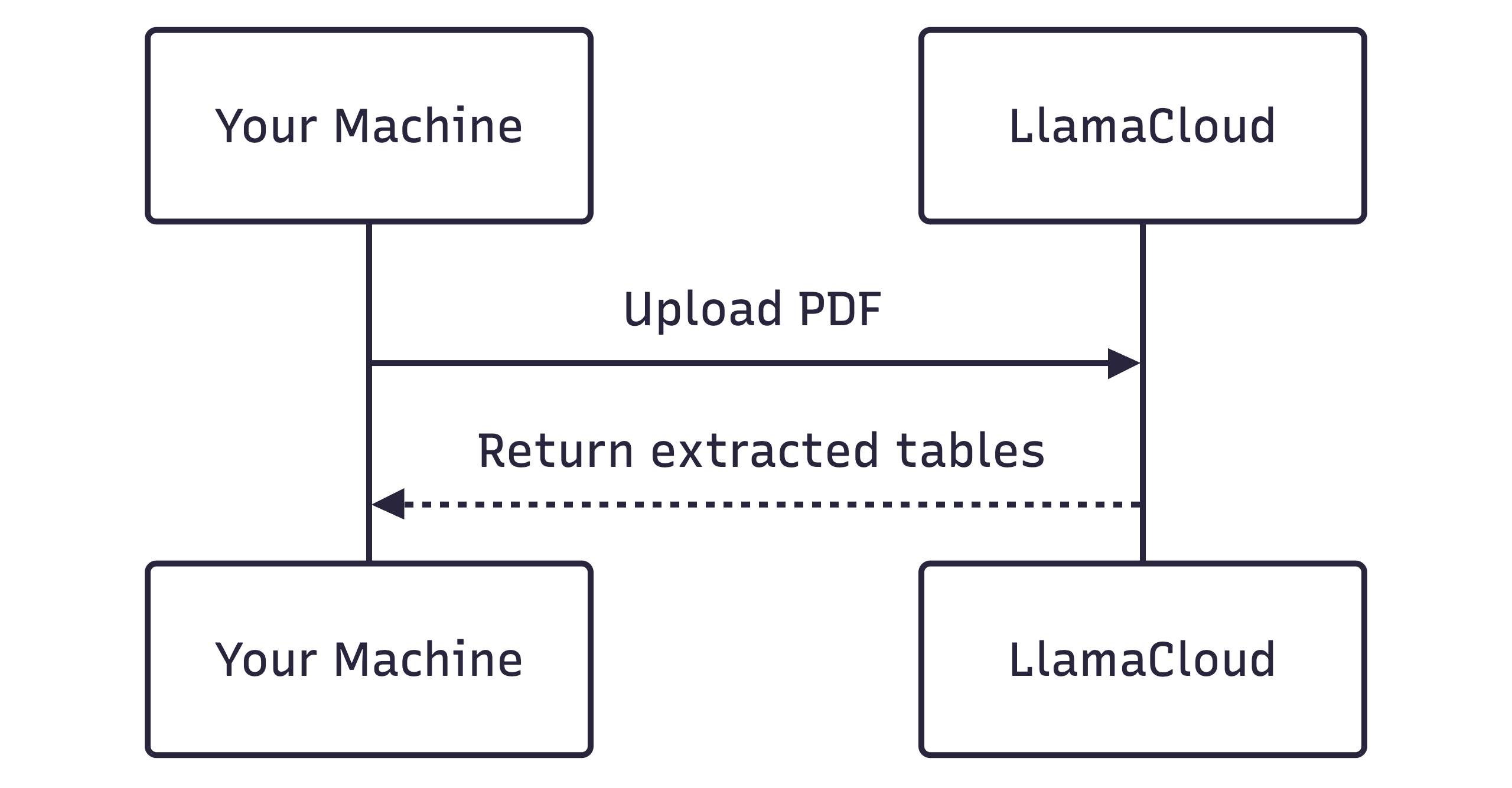
The runtime is mostly network upload time and server processing, so it depends on your internet speed and current LlamaCloud load rather than your local hardware.
Summary
In short:
LlamaParse wins on speed and accuracy. It’s the fastest overall and produces the cleanest output, but it requires sending PDFs to LlamaCloud.
Marker is the best local option. It’s faster than Docling and handles tables with clear visual separation well, but it merges columns on dense layouts.
Docling is the slowest of the three and prone to hallucinating values on dense tables.
When to use each:
Use LlamaParse if your documents aren’t sensitive and you want the best accuracy.
Use Marker if you must stay local.
Use Docling for its broader document conversion features beyond just table extraction like chunking and RAG.
For the full comparison across other tables with different layouts, see PDF Table Extraction: Docling vs Marker vs LlamaParse Compared.
Originally published on CodeCut.